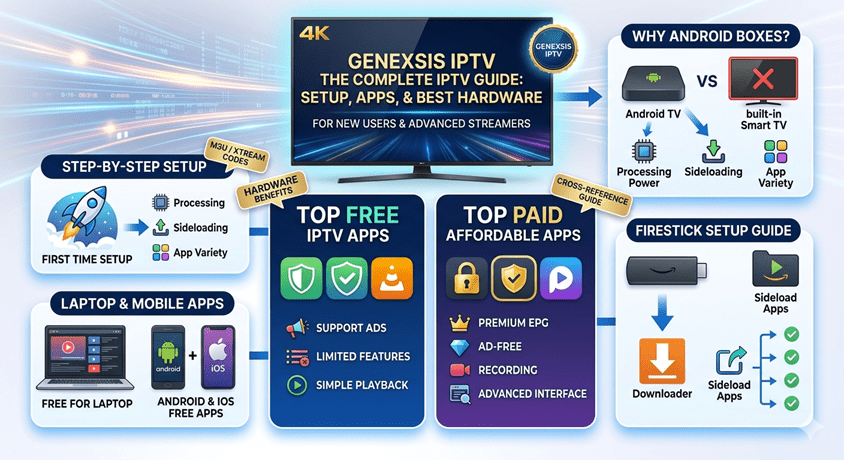
Welcome to the ultimate guide for cord-cutting in 2026! If you are tired of expensive cable bills and want access to thousands of global channels, movies, and live sports, you are in the right place. At Genexsis IPTV, we want to make sure your transition to high-quality streaming is as smooth as possible.
Whether you’re a total beginner or looking to optimize your current setup, this guide covers everything from hardware choices to the best apps for every device.
1. How to Setup an IPTV Service for the First Time (Beginners Guide)
Setting up IPTV is simpler than it sounds. Think of it as two parts: your IPTV Provider (the service that gives you the channels) and your IPTV Player (the app you use to watch them).
Step-by-Step Setup:
-
Stable Internet: You need a minimum of 30–50 Mbps for HD streaming and 100+ Mbps for 4K. Whenever possible, use an Ethernet cable instead of Wi-Fi for better stability.
-
Choose a Player: Download an app like Televizo, iptv stream player or TiviMate (see our app section below).
-
Enter Your Credentials: Your provider will usually give you login info in two formats:
-
Xtream Codes (Recommended): You’ll enter a Server URL, Username, and Password(Provided by your Service provider GenexsisIptv). This is faster and organizes your content better.
-
M3U URL: A single long link that loads your entire playlist.
-
-
Load the EPG(Optional): Go to settings to ensure your Electronic Program Guide (EPG) is active so you can see what’s playing next.
- You are done. Check your playlist is playing and enjoy
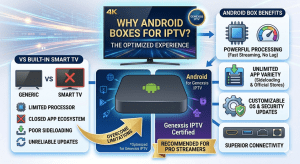
2. Why Android Boxes are Better Than Smart TVs for IPTV
Many new users try to use the built-in apps on their smart tvs like Samsung or LG Smart TVs. While convenient, dedicated Certified Android Boxes (like the Nvidia Shield, Xiaomi Mi Box, or Onn android boxes) are superior for three main reasons:
-
Processing Power: Smart TVs often use underpowered processors that struggle with 4K decoding and fast channel switching. Dedicated boxes are built specifically for high-bitrate streaming.
-
Sideloading Freedom: TV manufacturers often restrict their app stores. Android Boxes allow you to “sideload” APKs, giving you access to the most powerful IPTV players that aren’t available on standard TV stores.
-
Longevity: A Smart TV’s software often becomes obsolete in 3–5 years. You can upgrade a $50–$100 Android box every few years to keep your system fast without replacing your entire television.
3. Top Free IPTV Apps vs. Top Paid Affordable IPTV Apps
The app you choose defines your user experience. Here is how the top contenders of 2026 stack up:
Top Paid Apps (Premium Experience)
-
TiviMate (Premium): The industry gold standard for Android and Firestick. It offers a professional “cable-box” interface, multi-screen viewing, and scheduled recordings. Cost: ~$10/year or ~$30 for a lifetime license.
-
IMPlayer: A close rival to TiviMate, known for its sleek VOD (Video on Demand) layout and cloud-syncing features. Cost: ~$20–$35 for lifetime access.
Top Free Apps (Great for Starters)
-
IPTV Smarters Pro: The most popular beginner app. It’s easy to use and available on almost every device.(Not Recommended)
-
Televizo: A lightweight, reliable player that handles multiple playlists excellently.
-
IPTV Blink Player: Known for fast loading times and a clean, modern interface.
4. How to Setup Amazon Firestick to Install IPTV Apps
The Firestick is the most popular IPTV device, but because it’s an Amazon product, you must “unlock” it to install 3rd-party IPTV players.
The Step-by-Step Process:
-
Enable Developer Options: Go to Settings > My Fire TV > About. Highlight the name of your device and click the Select button on your remote 7 times until it says “You are now a developer.”
-
Allow Unknown Apps: Go back to My Fire TV > Developer Options. Turn on ADB Debugging and Install Unknown Apps.
-
Install Downloader: Search for the “Downloader” app in the Amazon App Store and install it.
-
Download Your Player: Open Downloader and enter the direct URL or code for your chosen IPTV app (like Smarters or TiviMate) to install the APK.
5. Top 5 Free IPTV Apps for Laptops (Windows & macOS)
Watching on a laptop is perfect for travel or multitasking. Here are the best free tools for 2026:
-
SFVIP Player (Windows): Widely considered the best desktop IPTV player. It’s fast, handles Xtream Codes perfectly, and offers a sleek interface.
-
IPTV Stream Player (macOS): Created by Md Murtuja Ali, this is a top-rated native player for Mac users that supports 4K and dual audio.
-
MyIPTV Player (Windows): A robust option available directly in the Microsoft Store.
-
VLC Media Player: The “old reliable.” It’s basic but can play almost any M3U link on any OS.
-
IPTVnator: A beautiful, open-source cross-platform player that works on Windows, Mac, and even Linux.
6. Top Free IPTV Apps for Android Mobile & iOS (iPhone/iPad)
Take your TV with you wherever you go with these top-rated mobile players:
-
IPTV Smarters Pro (Android/iOS): Still the king of mobile compatibility. It’s user-friendly and very stable.
-
IPTV Smart Player (iOS): Developed by Dmitri Iasibis, this is a highly-rated, polished app for iPhone and iPad.
-
GSE Smart IPTV (Android/iOS): A powerful player with advanced features like subtitle support and broad codec compatibility.
-
Televizo (Android): Excellent for Android tablets, offering a simple UI that even elderly users find easy to navigate.
-
IPTVX (iOS/Apple TV): One of the most beautiful interfaces on the Apple ecosystem, perfect for users who want a “Netflix-style” look for their IPTV.
Final Pro Tip:
To get the most out of your setup, always look for a provider that offers a 14-hour free trial. This allows you to test their server stability during peak hours before committing to a plan.
You can get a trial with us